SketchUp Models for Students: Free and Budget-Friendly Options That Actually Work
Architecture and interior design students live on SketchUp. It is the fastest way to turn a studio brief into a 3D model you can actually present, but the models you fill it with decide whether that presentation looks finished or half done. The problem is that student budgets are tight, studio deadlines are tighter, and the wrong model can slow your laptop to a crawl the night before a crit. This guide shows how to find SketchUp models for students that are free or cheap, clean enough to render well, and light enough to run on a normal laptop.
Why students need a different model strategy
Professional firms buy large model packs and keep them on a shared server. Students cannot do that, and they do not need to. A typical student project uses 10 to 20 models at most: a bed, a desk, a chair, a sofa, some lighting, and a few plants. The rest is your own geometry, your own walls, and your own design decisions.
Start with free SketchUp models, and judge them properly
Free models are the right starting point for any student. They let you test a workflow, furnish a first project, and learn what good geometry looks like without spending anything. The catch is that free does not always mean usable, so run this quick check on every download before it goes into your project file:
- Check the file size first. A single chair should be well under 5 MB. If a simple lamp is 20 MB, it is carrying hidden geometry or oversized textures you do not need.
- Open it in a blank file, not your project. Check its scale with the Tape Measure tool and confirm it is the size it claims to be.
- Purge before you import. Window, Model Info, Statistics, Purge Unused removes unused components, materials, and layers that came along for the ride.
- Look at the materials. A good model uses a small number of named materials. A bad one has dozens of unnamed textures that will bloat your file.
- Test it in a render. A model that looks fine in SketchUp can look flat or broken under real lighting in V-Ray or Enscape.
A good place to start is a small set of genuinely free, ready-to-use pieces. The Free Assets collection includes a free table lamp, a free floor lamp, a free accent armchair, a free side table pair, wall art frames, and a free plant pots set. Each one downloads instantly at $0, so you can test the quality check above on real models before you spend anything. Use free models for the pieces that fill a scene: lamps, plants, decor, and small furniture. Save your money for the hero pieces that carry the design.
Budget models worth paying for as a student
Spending $7 to $19 on a single model feels like a lot on a student budget, but compare it to the alternative. Searching free libraries for a clean, correctly scaled desk with a chair can eat an entire evening. A good paid model arrives ready to place, correctly scaled, with clean materials, and it works in every project after that. One $15 model used in four projects costs less than $4 per project.
The best student purchases share three traits: you will reuse them, they are hard to model yourself, and they come as sets. Desks, beds, dining tables, and sofas appear in almost every interior project, so buy those first. A comfortable-looking chair with proper proportions is hard to build quickly, so pay for the shapes you cannot build yourself. And a desk with its chair, or a bed with matching nightstands, saves you the time of hunting for pieces that match.
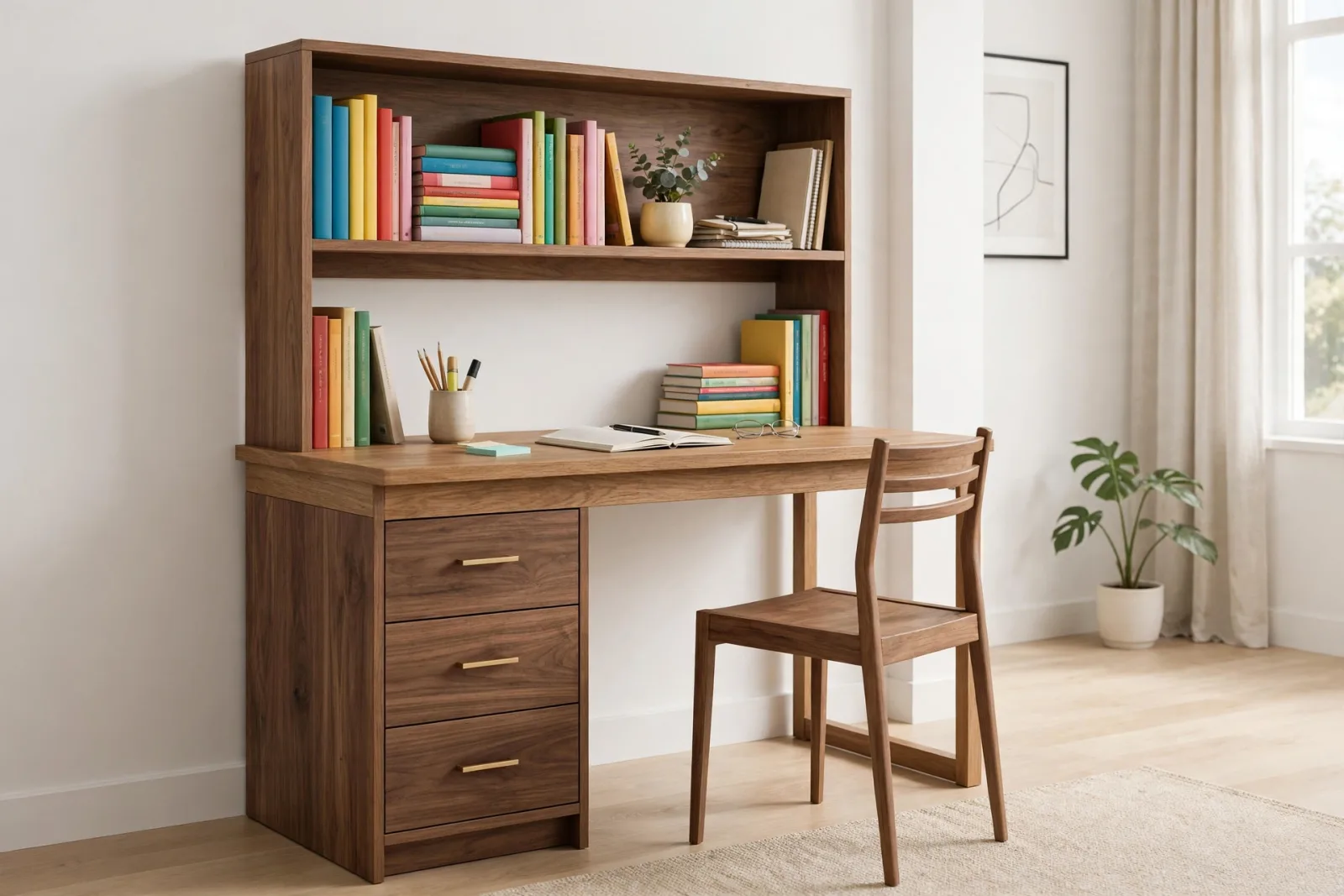
A strong example is the Study Desk with Hutch and Chair at $15. It is exactly the piece most student projects need: a workspace with storage and a matching chair, correctly scaled, ready to drop into a bedroom, a dorm room, or a small studio flat. One purchase covers the single most common student scene, and you will reuse it in project after project.
The same logic applies to sets. The Complete Bedroom Set at $49 gives you a full furnished bedroom in one download, which is a smart buy when a studio brief asks for a complete room and you have two days to deliver it. Compare that to buying the same pieces one by one, or to the hours spent searching for each one free.
Build a student starter kit for under $50
Here is a practical starter kit that covers most first-year and second-year briefs, built from free pieces plus one or two smart purchases:
- Free: table lamp, floor lamp, plant pots set, wall art frames, accent armchair, side table pair. Six pieces, $0, straight from the free assets collection.
- $15: study desk with hutch and chair, your most reused piece.
- $9 to $12: one bed or one sofa, depending on your current brief. A single bed at $12 or a modern floor lamp at $9 fills the next gap.
- $0: your own walls, floors, and joinery. Model these yourself, because they are your design, not decoration.
That kit totals $24 to $27 and furnishes a complete bedroom or study scene. Add a $49 bedroom set later only when a brief genuinely needs a full room at once, and you still stay far below the cost of a single textbook. Keep the kit in one folder on your laptop, with subfolders by room. When a new brief arrives, you copy from the kit instead of searching from scratch, and that habit alone saves more time than any single model purchase.
Keep your files light on a student laptop
Most student laptops have 8 GB or 16 GB of RAM and integrated or entry-level graphics. That is enough for SketchUp, but only if you respect the file size:
- Use components, not groups, for repeated items. Ten identical chairs as components cost far less than ten separate groups, and editing one updates them all.
- Purge unused items weekly. Window, Model Info, Statistics, Purge Unused is the single most useful button in SketchUp for students.
- Keep textures small. A 1024-pixel texture is plenty for a student render. A 4096-pixel texture on a small object is wasted memory.
- Save a clean copy before rendering. Keep your working file light, and make a separate copy for heavy render settings, so a crash never costs you the model itself.
Free models are the biggest source of file bloat, because they often arrive with hidden layers and oversized textures. That two-minute quality check is what protects your laptop, so do it every time, even when the download is free.
Where to find SketchUp models for students without breaking the budget
Students have three honest options, and the smart move is to use all three in the right order. First, free collections from curated stores. A curated free collection beats a random warehouse search because someone has already checked the scale, the materials, and the file size. Second, single budget purchases for hero pieces. Spend $7 to $19 only on the pieces you will reuse across projects. Third, your own modeling practice. Model simple furniture yourself, starting with a side table or a bookshelf. You learn the tools, and you end up with a model that is exactly the size you need, with no cleanup required.
What to avoid: paid subscriptions you will forget to cancel, huge model packs where you use three items out of five hundred, and any site that asks for your student ID or card details before showing you a single model. If a free model needs a credit card, it is not free.
Frequently asked questions
Are free SketchUp models good enough for student projects?
Yes, for most student work, provided you check them first. A clean free lamp, plant, or side table renders just as well as a paid one. The pieces worth paying for are the large hero items, like beds and sofas, where correct proportions and clean materials make a visible difference in a presentation. Start free, and spend only where the quality gap is real.
How much should a student spend on SketchUp models?
Most students can furnish a full project for $0 to $30. Six free pieces cover the decor and lighting, one $15 desk set covers the workspace, and a $9 to $12 bed or sofa fills the room. A complete room set at $49 makes sense only when a brief needs a full furnished room on a short deadline.
How do I keep SketchUp running fast on my laptop?
Check every model in a blank file before importing it, purge unused components and materials regularly, use components for repeated items, and keep textures at a sensible size. Most slowdowns come from a few oversized free models, not from SketchUp itself, so the quality check matters more than your laptop specs.
Start free, spend small, and reuse everything
Good SketchUp models for students are not about finding the biggest library. They are about building a small, reliable kit: free pieces for decor and lighting, one or two budget purchases for the furniture you use in every project, and a habit of checking quality before anything enters your file. Start with the free assets, add a study desk set when your next brief needs one, and keep everything organized so the next project starts from your kit instead of from zero.
Browse the free SketchUp models and the budget furniture models to build your starter kit today.
Quick answer
In short: Free and budget SketchUp models for students: clean, render-ready furniture, how to keep files light on a laptop, and a starter kit for under $50.
Frequently Asked Questions
Where can I download free SketchUp models?
What file formats do SketchUp Collection models use?
Can I use SketchUp Collection models in commercial projects?
Which SketchUp version do I need?
Written by
Admin User
Related Articles
Keep learning with these posts
Does Enscape Render Directly Inside Revit and SketchUp?
Yes. Enscape is a real-time plugin that renders directly inside Revit and SketchUp, with no export step. Here is how it works in each program and what you need.
Read article
SketchUp Textures Guide: Materials vs Model Detail
Textures or geometry? This SketchUp textures guide shows when a material does the job, when real edges are needed, and how to balance both for faster, realistic renders.
Read article
Modern Sofa SketchUp Model Guide: Pick, Place and Render
Learn how to pick the right modern sofa SketchUp model, size it for your room, place it well, and render it so your living room looks designed, not assembled.
Read article