Free vs Premium SketchUp Models: Quality, Licensing, and Time Cost Compared

Every SketchUp user reaches the same fork in the road sooner or later. You need a sofa, a bed, or a full kitchen for a scene, and you have two options: download a free model from the 3D Warehouse, or pay for a premium model from a curated library. Both can work, and both can fail badly. The difference is not the price tag. It is what you get for your time, how clean the geometry is, and whether you can legally use the model in a client project.
This guide compares free vs premium SketchUp models on quality, licensing, time cost, and render readiness, so you know when free is the smart choice, when paid pays for itself, and how to mix the two without slowing your model down.
What Free SketchUp Models Really Cost
Free models look free, but they are paid for in time. A typical free sofa can arrive with 200,000 polygons, flipped faces, materials named "Material_47", and a scale that is off by a factor of ten. Fixing those problems takes 15 to 30 minutes per model, and a room with ten models can eat a whole afternoon before you place a single wall.
That does not mean free models are bad. It means you should treat them as raw material, not finished furniture. The best free models are simple, low-poly pieces: a lamp, a plant pot, a side table. They are easy to check, easy to fix, and easy to replace if they turn out to be junk. Our own free accent armchair and free table lamp are built exactly this way, clean geometry, sensible polygon counts, and materials you can edit in one click. You can download them from the free assets collection and test the difference yourself before spending anything.
What Premium SketchUp Models Actually Buy You
A premium model is not just a prettier version of a free one. You are paying for four things: curation, consistency, clean geometry, and a license you can rely on.
Curation means someone already rejected the bad models. A curated library checks polygon counts, face orientation, component structure, and material naming before a model is listed. Consistency means every model in a set shares the same scale, the same origin height, and the same material logic, so a bedroom set drops into your scene as one coherent unit instead of five strangers. Clean geometry means quads where possible, no stray edges, no internal faces, and components that are actually components, so you can swap a fabric or resize a part without exploding the model.
Take a room bundle as an example. The complete living room set includes a sofa, chairs, coffee table, TV unit, and decor pieces modeled to sit together, with matching heights, proportions, and materials. Buying those pieces one by one from random free sources would take hours of hunting and fixing, and the result would still look assembled rather than designed. The complete bedroom set works the same way, and the full bundles collection covers dining rooms, kitchens, and home offices too.
The price gap is smaller than most people expect. A single premium chair costs about the same as a coffee, and a full room bundle costs less than one billable hour of a designer's time. If a bundle saves you even two hours of cleanup, it has already paid for itself.
Quality Checklist: How to Judge Any Model in 60 Seconds
Free or paid, run this quick check before a model joins a project file:
- Polygon count: Check Entity Info. A chair should be a few thousand polygons, not a hundred thousand. If a simple object is heavier than a whole room, reject it.
- Face orientation: Turn on monochrome mode. Blue faces point inward and will render dark or invisible. A good model has almost no blue faces.
- Component structure: A good model is a component, or a small set of nested components, with a clear name. If it is 400 loose groups named "Group#212", walk away.
- Materials: Named, editable materials like "Oak - Light" are a good sign. Dozens of unnamed materials are a warning.
- Scale and origin: Drop the model next to a 1.8 m tall figure. If the chair is waist-high, the scale is wrong, and the origin should sit at the floor, not floating below it.
- File size: A single furniture piece should be well under 5 MB as a .skp file. Anything much larger usually hides bloated textures.
Run this check on every free model you download. After a few checks you will spot bad models at a glance, before they pollute your project.
Licensing: The Difference Nobody Reads Until It Matters
Licensing is where free and premium models differ most. A free model from an open library usually comes with a permissive license for personal use, but the terms vary by uploader, and some models carry no clear license at all. Using an unlicensed model in a commercial client render can create a problem you only discover when a client asks where an asset came from.
Premium libraries solve this with a simple, written license: you buy the model, you can use it in commercial projects, client presentations, and renders. Read the license once, keep the receipt, and you are covered. Free models from a reputable store with a stated license are also safe, which is why our free assets carry the same clear terms as our paid ones.
The practical rule is simple. For learning and personal projects, free models are fine. For anything a client will see, or anything you will charge for, use models with a clear commercial license, either a premium purchase or a free model from a source that states its license in writing.
Time Cost: The Real Math
Say your time is worth $30 an hour, a modest rate for a designer. A free sofa takes 5 minutes to find, 20 minutes to clean up, and 10 minutes to fix materials, about $17.50 of your time, plus the risk that it still renders badly. A premium sofa costs $9 to $19, downloads in a minute, and drops straight into the scene. The paid model is cheaper, and it arrives without the risk.
Scale that to a full room. Ten free pieces at 30 minutes of cleanup each is five hours. Ten premium pieces, or one room bundle, is under an hour including placement. That difference is a full working afternoon, worth far more than the bundle price, which is why professionals buy room sets for deadline work and save free models for experiments and early concepts.
Render Readiness: V-Ray, Enscape, and Real Materials
A model that looks fine in SketchUp can fall apart in a renderer. Free models often use flat colors instead of real materials, so a wooden table renders as a brown plastic slab. They may also have reversed faces, which render black in V-Ray and Enscape.
Premium models are usually built render-ready: named materials, texture maps at sensible resolutions, and geometry that survives a high-quality render without artifacts. If you render client work, this alone justifies the price. See our guides on SketchUp models for V-Ray and SketchUp models for Enscape for a full render-ready checklist.
For free models you plan to render, budget extra time: replace flat colors with textured materials, check face orientation, and run a low-resolution test render first. One test render can save an hour of rework.
When Free Wins, When Premium Wins
Use free models when you are sketching a concept, testing a layout, learning SketchUp, or filling a background corner that nobody will look at closely. Use premium models when you are presenting to a client, rendering a final image, working to a deadline, or building a scene you will reuse across projects.
The smartest workflow mixes the two. Start with free models to block out the room and test the layout, then replace the hero pieces, the sofa, the bed, the dining table, with premium models for the final presentation. Keep trusted free pieces for background filler, and invest in premium room bundles for the rooms you design most often.
How to Build a Model Library That Saves You Time
Whatever mix you choose, organize it once and it pays you back on every project. Create a folder per room type, keep free and premium models in separate subfolders, and name files by what they are, not by where they came from. Purge unused components regularly, and test every new download in a blank file before it touches a project.
Free vs premium is not a loyalty test, it is a budgeting decision. Spend money where a model earns it back in time and presentation quality, and spend time where a free model costs you nothing but a few minutes.
FAQ
Are free SketchUp models safe to use in client projects?
Only if the license allows commercial use. Free models from a reputable store with a stated license are safe, but random uploads with no license statement carry real risk. For client work, use models with a clear commercial license and keep the receipt on file.
Do premium SketchUp models really save time?
Yes, in most cases. A premium model is cleaned, correctly scaled, and render-ready when you download it, while a free model often needs 15 to 30 minutes of cleanup per piece. On a full room that difference adds up to hours.
Can I mix free and premium models in the same scene?
Absolutely, and most professionals do. Use free models for early concepts and background filler, and premium models for hero pieces and final presentations. Just check every free model for polygon count, face orientation, and scale first, so one heavy model does not slow the whole file down.
Quick answer
In short: Free vs premium SketchUp models compared on quality, licensing, time cost, and render readiness, so you know when free is smart and when paid pays for itself.
Frequently Asked Questions
Where can I download free SketchUp models?
What file formats do SketchUp Collection models use?
Can I use SketchUp Collection models in commercial projects?
Which SketchUp version do I need?
Written by
Admin User
Related Articles
Keep learning with these posts
Does Enscape Render Directly Inside Revit and SketchUp?
Yes. Enscape is a real-time plugin that renders directly inside Revit and SketchUp, with no export step. Here is how it works in each program and what you need.
Read article
SketchUp Textures Guide: Materials vs Model Detail
Textures or geometry? This SketchUp textures guide shows when a material does the job, when real edges are needed, and how to balance both for faster, realistic renders.
Read article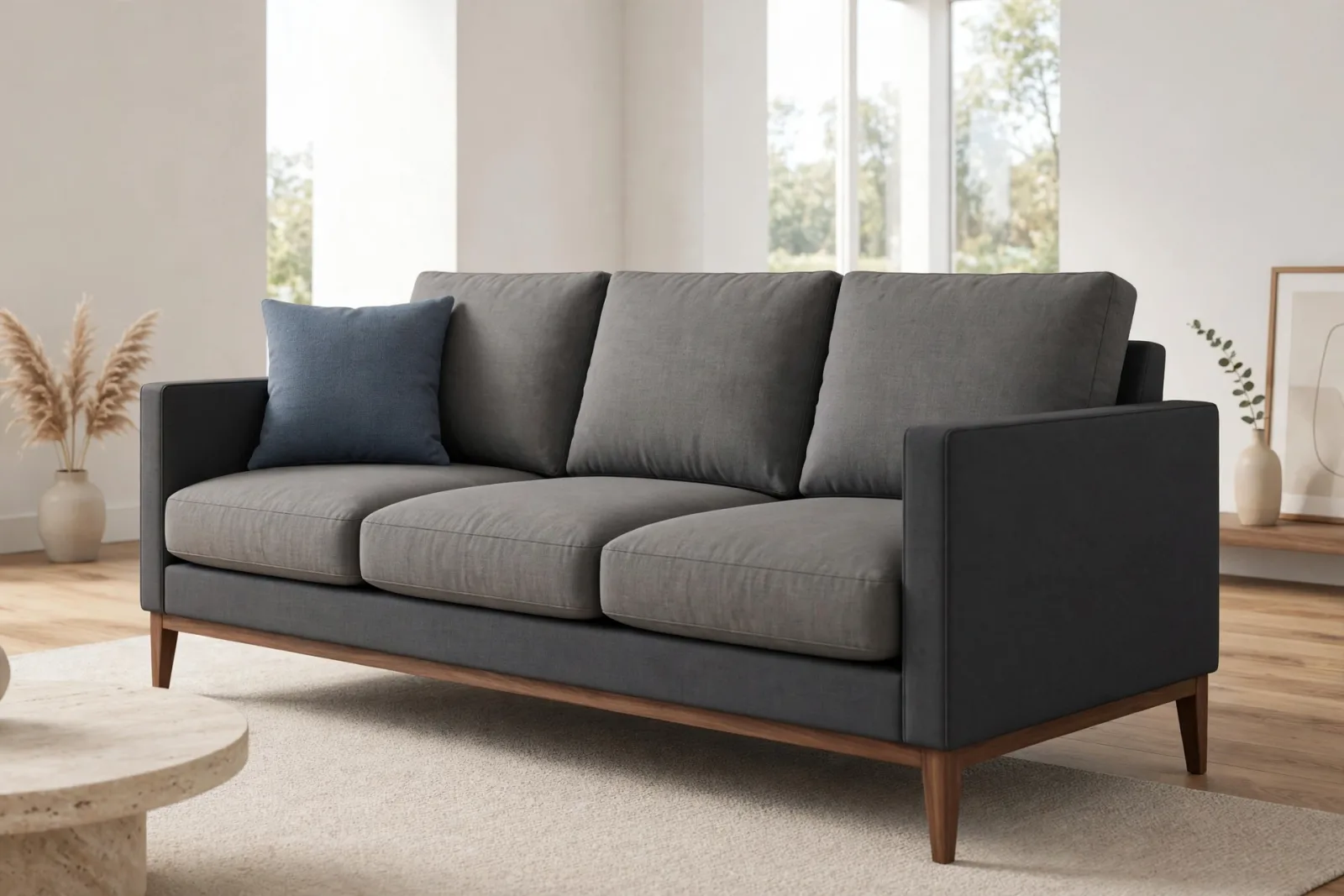
Modern Sofa SketchUp Model Guide: Pick, Place and Render
Learn how to pick the right modern sofa SketchUp model, size it for your room, place it well, and render it so your living room looks designed, not assembled.
Read article