SketchUp Components vs Groups: When to Use Each
If you have modelled in SketchUp for more than a week, you have hit the same question every beginner hits: should this be a group or a component? Both tools do the same basic job, they wrap geometry so it stops sticking to everything around it. The difference is what happens when you copy them. Get this choice right and your models stay fast, editable, and easy to fix. Get it wrong and a simple change turns into an afternoon of rework.
This guide explains SketchUp components vs groups in plain language, with real interior examples.
What Is a Group in SketchUp?
A group is a one-off container. Select some geometry, press G or right-click and choose Make Group, and SketchUp wraps it into a single object you can move, rotate, scale, and copy without it merging into nearby faces and edges.
Every copy of a group is independent. Edit one copy and the others stay exactly as they were. That independence is the whole point of a group: it protects unique geometry.
Use a group when the object exists only once in your model, or when each copy needs to be different. A good example is a custom wall with an odd angle, a one-off built-in shelf, or a staircase shaped for a specific room.
What Is a Component in SketchUp?
A component is a reusable container. It behaves like a group in most ways, but every copy stays linked to the same definition. Edit one instance and every other instance updates instantly. That single behaviour is the biggest time saver in SketchUp.
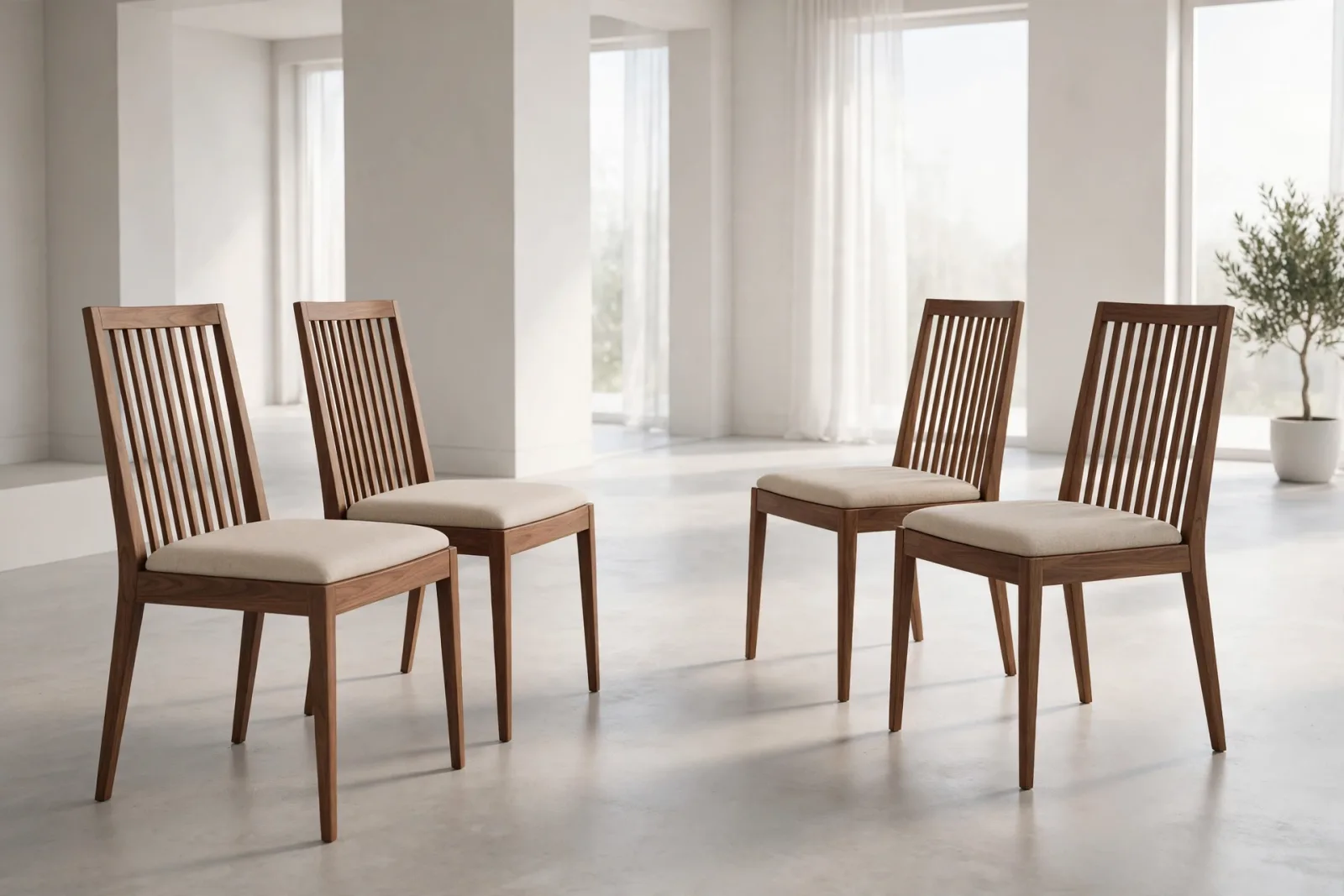
Think of a dining table with six identical chairs. Model one chair as a component, copy it five times, and you have a full set. Later, if the client wants slimmer legs or a different seat height, you edit one chair and all six change together. Try that with groups and you would be editing six chairs one by one.
That is why ready-made model sets are built from components. Take the dining chairs set: six matching chairs that you can place, rotate, and edit as one linked family instead of six separate objects. The same logic applies to the panel doors set, where every door in a hallway shares one definition, so a handle or panel change updates the whole row at once.
SketchUp Components vs Groups: The Key Differences
The two tools look similar, but they behave differently in five ways that matter on real projects.
- Linked copies. Component copies stay linked and update together. Group copies are fully independent from the moment you copy them.
- Editing. Double-click a component and you edit its definition, which changes every instance. Double-click a group and you edit only that one object.
- Naming and reuse. Components have names and live in the Components tray, so you can drag them into any model later. Groups have no name and no library; they only exist inside the current file.
- File size. Ten copies of a component store the geometry once, plus ten small placement records. Ten copies of a group store the geometry ten times, so the file grows much faster.
- Axes and insertion point. A component has its own origin and axes, which control how it snaps and rotates when you place it. A group uses the model axes, which is fine for one-off geometry but less predictable for repeated placement.
When to Use Components
Use a component whenever an object appears more than once, or might appear more than once later. Repetition is the trigger.
Repeated furniture and fixtures
Chairs, doors, windows, light fixtures, and bedside tables are the classic cases. A nightstand pair is a perfect example: two identical tables, one on each side of the bed. Build one as a component, mirror or copy it, and any later change, a new handle, a taller leg, a different finish, lands on both at once.
Objects you will reuse across projects
If you model a good office chair, a standard kitchen cabinet, or a favourite pendant light once, save it as a component and reuse it in the next project. Over a year, a personal component library becomes one of the fastest ways to work. Groups cannot do this; they never leave the file they were made in.
Anything the client might change
Clients change their minds about repeated items more than anything else: a door style, a chair model, a window size. When those items are components, one edit fixes the whole project.
When to Use Groups
Use a group when the geometry is unique and will stay unique. Most of the structure of a room falls into this category.
Walls, floors, and ceilings
Every wall in a project has its own length, height, and openings. There is no benefit in linking them, and linking them would be dangerous: editing one wall would change them all. Make each wall, floor slab, and ceiling a group.
One-off custom pieces
A reception desk shaped for one lobby, a bay window seat, a custom fireplace surround. These are designed for one spot and will never repeat. A group keeps them protected and independent.
Quick temporary geometry
When you are testing an idea, sketching a massing block, or building a cutting guide, a group is faster. You do not need a name, a library entry, or linked behaviour for something you will delete in ten minutes.
Common Mistakes and How to Fix Them
Mistake 1: Grouping everything by habit
Many beginners press G for everything because it is fast. The model works, until the client asks to change all twelve doors and you realise each one is a separate group. Fix it early: whenever you are about to copy something, ask if the copies should stay linked. If yes, make it a component first, then copy.
Mistake 2: Making a component out of something unique
The reverse mistake is also common. You make a wall a component, copy it around the room, then edit one wall and watch every wall change. The fix is simple: right-click the component and choose Make Unique before editing, or explode it and regroup it. Make Unique is the safer option because it keeps the container intact.
Mistake 3: Nesting without a plan
Both groups and components can sit inside each other. A good structure is a component for each chair, grouped inside a component for the dining set, placed inside a group for the room. A bad structure is random nesting with no names, which makes the Outliner panel unreadable. Name your components as you create them, and keep nesting to two or three levels.
Mistake 4: Forgetting the component origin
When you create a component, SketchUp sets its origin at the point you choose. If the origin ends up floating in space, the component will be hard to place and rotate later. Before you click Create, set the axes to a sensible corner, usually the bottom front corner, so the piece snaps cleanly to floors and walls.
Components, File Size, and Performance
File size is where components quietly win. A living room with eight identical chairs, four matching pendant lights, and six windows can easily contain thousands of faces. As components, that geometry is stored once. As groups, it is stored again for every copy, and the file balloons.
Large files are slower to open, orbit, and render. If your model feels heavy, check the Model Info statistics: a high face count with lots of repeated groups is often the cause. Converting repeated groups into components is one of the fastest performance fixes available.
Ready-made sets already follow this rule. The complete dining set ships as linked components, so a full table, six chairs, and a sideboard add very little weight to your file compared with the same pieces modelled as loose groups.
A Simple Rule You Can Use Every Time
If you are still unsure, use this two-second test before you click:
- Will I copy it, or might I copy it later? Yes: make it a component.
- Is it one of a kind in this model? Yes: make it a group.
- Will I want it in another project? Yes: make it a component and save it to your library.
- Am I just testing an idea? Yes: make it a group and move on.
That is the whole decision. Most experienced modellers reach for components far more often than beginners expect, because almost everything in an interior repeats: chairs, doors, windows, lights, handles, shelves.
Start applying the rule on your next model. Build the walls and floors as groups, then fill the space with component-based furniture from the furniture collection. You will feel the difference the first time a client asks for a change and you fix it in one edit instead of twelve.
Frequently Asked Questions
Can I convert a group into a component?
Yes. Select the group, right-click, and choose Make Component. The geometry stays the same, and from that point on, copies of it stay linked. If you already copied the group several times, convert one copy first, then replace the other copies with the new component using the Components tray, or delete them and copy the component again.
Can I convert a component into a group?
Yes. Right-click the component and choose Explode, then immediately regroup the loose geometry. Or use Make Unique first if you only want one instance to break away from the rest.
Do components slow down SketchUp?
No, components make models faster, not slower. Because repeated geometry is stored once, component-heavy models are smaller and lighter than the same scene built from groups. The only thing that slows SketchUp down is raw face and edge count, and components are the best tool for keeping that count low when objects repeat.
Quick answer
In short: Confused by SketchUp components vs groups? Learn when to use each, with real interior examples, so repeated furniture stays easy to edit and your files stay light.
Frequently Asked Questions
Where can I download free SketchUp models?
What file formats do SketchUp Collection models use?
Can I use SketchUp Collection models in commercial projects?
Which SketchUp version do I need?
Written by
Admin User
Related Articles
Keep learning with these posts
Does Enscape Render Directly Inside Revit and SketchUp?
Yes. Enscape is a real-time plugin that renders directly inside Revit and SketchUp, with no export step. Here is how it works in each program and what you need.
Read article
SketchUp Textures Guide: Materials vs Model Detail
Textures or geometry? This SketchUp textures guide shows when a material does the job, when real edges are needed, and how to balance both for faster, realistic renders.
Read article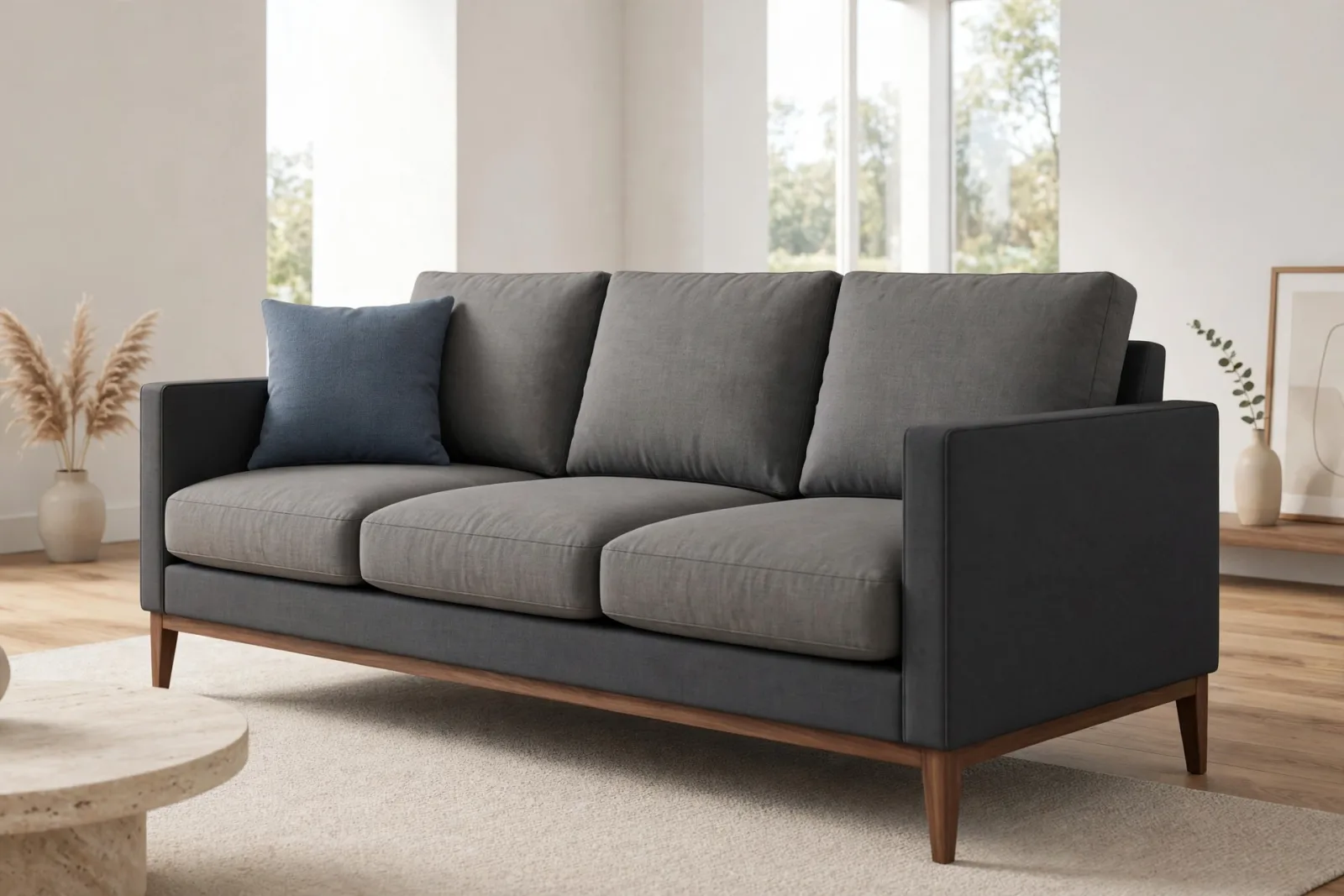
Modern Sofa SketchUp Model Guide: Pick, Place and Render
Learn how to pick the right modern sofa SketchUp model, size it for your room, place it well, and render it so your living room looks designed, not assembled.
Read article