SketchUp Car Models: How to Choose, Place, and Render Vehicles in Exterior Scenes
A car can make or break an exterior SketchUp render. Put the right vehicle on a driveway and the whole scene suddenly reads as a real place, with scale, lifestyle, and context. Put the wrong one in, too big, too shiny, floating a few centimetres above the ground, and the eye goes straight to the mistake. This guide covers how to choose SketchUp car models, how to place them so they look believable, and how to keep your file fast enough to keep working in.
One honest note: a car is usually a supporting actor, not the star of an architectural scene. Pick a vehicle that supports the building, garden, and street, without stealing attention or slowing SketchUp to a crawl.
What Makes a Good SketchUp Car Model
Good car models share a few traits, whatever style you are modelling: clean geometry, sensible grouping, and clearly named materials, so you can edit paint colour or glass tint easily. Wheels should be separate groups or components, and doors, windows, and lights should read clearly from a normal viewing distance, not just in a close-up.
Check these points before you commit to a model:
- Real-world size: a typical family sedan is roughly 4.5 to 4.8 metres long and about 1.8 metres wide. If a downloaded car measures 6 metres, it will dwarf your driveway and throw off every other scale cue in the scene.
- Clean underside and wheel arches: cars are often viewed from a low camera angle, so gaps, holes, or missing wheel wells show up fast.
- Separate materials: body paint, glass, chrome trim, tyre rubber, and headlights should be separate materials, so a render engine can treat each one correctly.
- Reasonable polygon count: a background car can be light, while a hero car near the camera can carry more detail. Do not use a showroom-quality model for every car in a distant car park.
- Correct orientation: the model should face forward along a sensible axis, so placing and rotating it in your scene is simple.
Match the Car to the Scene
The right car depends on the building and the story you are telling. A compact hatchback suits a small urban house or a student housing block. A family SUV fits a suburban home with a double garage. A pickup suits a rural property, a workshop, or a trades yard. A classic or luxury sedan suits a high-end villa presentation, but only if the rest of the scene matches that tone. A delivery van can be perfect for a commercial or mixed-use scheme, where it explains how the building is used.
Think about the neighbourhood too, and stick to neutral colours such as white, silver, grey, and dark blue for most renders, since they do not compete with the building materials. A single bright car can work as a focal point, but several bright cars turn a house render into a car advertisement. For client presentations, keep the choice conservative and generic, so the client remembers the house and garden, not the car brand.
Scale, Detail, and File Size
Scale is the most common car-model mistake, and also the easiest to fix. After importing a car, measure it with the Tape Measure tool and compare it with a known reference, such as a 1.8 metre wide parking bay or a standard 2.4 metre wide garage door. Resize the whole car as one group or component, never by stretching one axis, which produces a cartoon look.
Detail should follow camera distance. A car close to the camera deserves clean wheel rims, visible door handles, and proper glass, while a car at the far end of a street only needs a correct silhouette, believable colour, and dark glass. Save the detailed model for the one or two cars the viewer will actually study.
If your file starts to lag after adding cars, purge unused components and keep detailed cars for the final render file only, using simplified versions while you work.
Materials That Render Well
Car paint is the material most people get wrong. Real car paint is not flat: it has a clear, slightly reflective surface that picks up reflections from the sky and nearby buildings. In V-Ray or Enscape, use a car-paint style material with moderate reflection and a clearcoat feel, not a plain plastic colour. Keep reflection subtle, or the car will look like chrome.
Glass should be dark but not black. Slightly tinted glass with some reflection reads as real glazing, while pure black glass looks like a hole in the body. Tyres should be very dark grey, not pure black, with a rough, non-reflective finish. Chrome trim, grilles, and badges need a metal material with high reflection but low roughness, used sparingly. Headlights and tail lights should be separate materials, so you can give them a slight glow or transparency in the render.
Before a final render, test the car material under your scene lighting with a quick test render of the car alone.
Placing Cars So They Look Real
Placement is where most car scenes succeed or fail. Start with the ground. Every wheel must touch the ground plane, with no floating tyres and no wheels sunk into the driveway. If your site has a slope, rotate the car to match the slope, or place it on a flat parking pad. A car tilted at a strange angle instantly breaks the illusion.
Next, think about how a real driver would park. Cars rarely sit perfectly parallel to a building, so a slight angle looks natural. Leave realistic gaps, align cars with parking lines and driveway edges where those exist, and vary the colour, model, and angle slightly, so the scene does not look cloned.
Shadows sell the placement. A car with no contact shadow looks pasted on, so check that your sun angle puts a shadow under and beside the car, on the correct side for the time of day. Finally, check the view from your actual camera, not just from above. A car that looks fine in plan view may block the front door or hide a key window in the render view.
Common Car Model Mistakes to Avoid
- Wrong scale: a car that is too large makes the house look small, and a car that is too small makes the driveway look oversized.
- Floating or sunk wheels: check all four wheels against the ground plane, especially on sloped sites.
- Too many hero cars: one detailed car near the camera is enough. Fill the background with lighter models.
- Identical repeats: the same car, colour, and angle repeated three times is obvious, even at a glance.
- Clashing style: a futuristic concept car outside a traditional cottage confuses the story of the scene.
- Over-shiny paint: chrome-like reflections on every panel look fake. Keep paint reflection moderate and realistic.
- Blocking the architecture: if the car hides the entrance, the main facade, or the garden feature, move it or shrink its role.
Complete the Exterior Scene Around the Car
A car alone on an empty driveway still looks unfinished. Planting, seating, and garden furniture tell the viewer that people actually live there, and they help the car feel like part of a home rather than a floating prop.
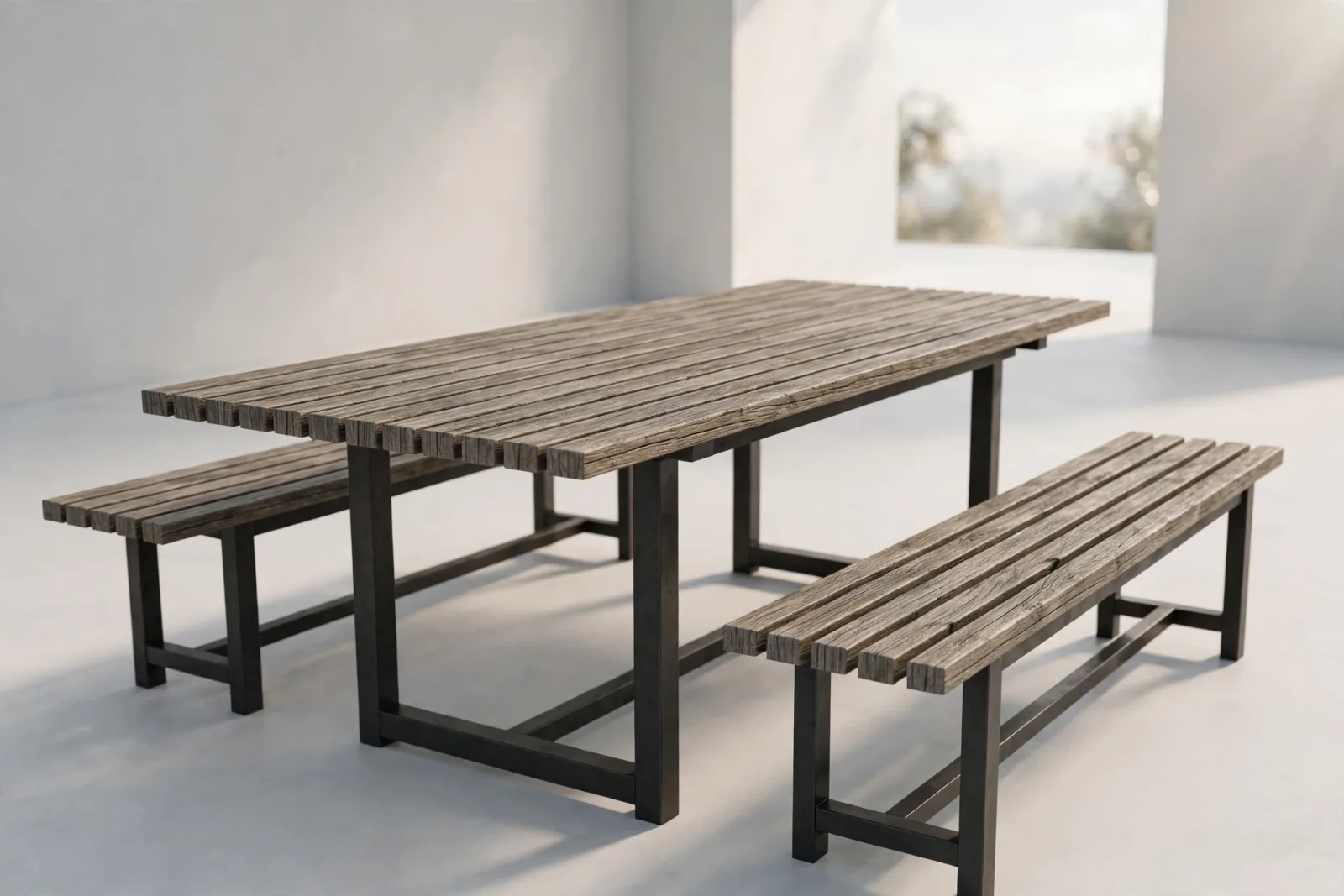
For that finishing layer, the Garden Table and Bench Set works well on patios and terraces, while the Garden Bench suits a front garden path or a quiet corner near the driveway. Add a Planter Set beside an entrance or along a boundary wall to soften hard landscaping and frame the view toward the house. You can browse the full range of outdoor pieces in the Exteriors collection, and try the Free Plant Pots Set if you want to test an exterior dressing idea before buying a larger set.
Keep the balance right. Planting and furniture should frame the car and the building, not crowd them, and sight lines to the front door should stay open.
Quick Checklist Before You Render
- Car measured and scaled to real-world size, with all four wheels on the ground.
- Car style, colour, and number of vehicles matched to the building and neighbourhood.
- Detailed model used only near the camera, lighter models used in the background.
- Paint, glass, tyres, and chrome given separate, render-ready materials.
- Parking angle slightly natural, not perfectly rigid, with realistic gaps.
- Shadows checked from the render camera, and nothing important blocked.
- Planting and garden furniture added to finish the scene, without overcrowding it.
Get those seven points right and your SketchUp car models will do their proper job: they will make the architecture feel inhabited, scaled, and real, without ever stealing the show.
Frequently Asked Questions
Where should I place a car in a SketchUp exterior render?
Place it where a real driver would park: on a driveway, in a marked bay, or in a garage forecourt, with all four wheels on the ground and a slight, natural angle. Avoid blocking the front door, the main facade, or the garden feature, and always check the placement from your render camera, not just from above.
How do I keep SketchUp fast when I add car models?
Use a detailed car only near the camera and lighter, low-polygon cars in the background. Purge unused components, keep heavy cars out of the working file until final render stage, and test the file speed after each car you add. If the model lags, simplify the distant cars first.
Why does my car look fake in renders?
The usual causes are wrong scale, floating wheels, over-shiny paint, or pure black glass and tyres. Fix the scale first, seat all four wheels on the ground, give paint a moderate reflection with a clearcoat feel, and use dark grey, slightly rough materials for tyres. A quick test render of the car alone will show which material needs adjusting.
Written by
Admin User
Related Articles
Keep learning with these posts

SketchUp Plants and Trees Models: Greenery That Does Not Slow Your Model
Learn how to choose SketchUp plants and trees models that look great in renders without slowing your file down, from low-poly trees to smart placement tricks.
Read article
SketchUp Office Models: Furnish Workspaces That Look Ready to Work In
SketchUp office models for desks, chairs, storage and meeting areas: real dimensions, a quality checklist, layout order and performance tips for workspaces.
Read article
SketchUp Kitchen Models: Cabinets, Islands and Dining Sets That Render Well
A practical guide to picking SketchUp kitchen models that behave in the viewport and in V-Ray and Enscape: cabinets, islands, sinks, seating and layout tips.
Read article