SketchUp Plants and Trees Models: Greenery That Does Not Slow Your Model
Every SketchUp scene needs life, and nothing adds it faster than greenery. A few well placed plants can turn a flat interior render into a warm, lived in room, and a row of trees can turn a bare exterior view into a believable landscape. The problem is that plants and trees are also the fastest way to wreck a SketchUp file. One beautiful but heavy tree can add more geometry than an entire house, and ten copies of it can bring orbit, zoom, and rendering to a crawl.
The good news is that you do not have to choose between a lively scene and a fast model. With the right kind of SketchUp plants and trees models, and a few placement habits, you can have both. This guide explains what makes a plant model heavy, which types of greenery suit which scene, and how to build scenes that stay light, render well, and still look natural.
Why Plants and Trees Slow SketchUp Down
SketchUp handles boxes, walls, and furniture easily because those shapes use relatively few faces. Plants are different. A realistic leaf canopy is made of hundreds or thousands of small faces, and a tree multiplies that across every branch. Multiply one heavy tree by twenty copies across a garden, and your file can jump from a few megabytes to hundreds of megabytes in minutes.
Three things drive the weight of a plant model:
- Face count: the total number of faces in the geometry. Leaf clusters and detailed bark are the usual culprits.
- Texture size: large leaf and bark textures eat memory and slow renders, even when the geometry itself is modest.
- Copy count: SketchUp components share geometry, so copies are cheaper than unique models, but heavy components still cost memory every time they appear.
Low-Poly, Medium, and High-Detail Greenery: When to Use Each
Not every plant in a scene needs the same level of detail. Matching detail to distance is the single most effective way to keep files light.
Low-poly plants for background and mass planting
Low-poly trees and shrubs use simple leaf shapes and few faces. They look slightly stylized up close, but at a distance, or in a small render, they read perfectly as greenery. Use them for hedges, distant tree lines, and any planting that fills space rather than starring in the shot. They are also ideal for early design stages, when you are testing layouts and do not want a heavy file slowing every orbit.
Medium-detail plants for everyday scenes
Most interior and exterior scenes live here. Medium-detail plants have recognizable leaf shapes, decent canopy volume, and textures that hold up at normal viewing distances. A potted plant beside a sofa, a planter by a front door, or a small tree in a courtyard all work well at this level. This is the sweet spot for client presentations: the scene looks finished without the file becoming painful to work in.
High-detail plants for hero shots only
Save high-detail trees and feature plants for the one or two spots the camera will linger on. A statement olive tree in a courtyard render, or a detailed monstera in a close interior view, earns its face count. Everywhere else, step the detail down. If a high-detail plant ends up in the background, swap it for a lighter version before you render.
Indoor Plants: Small Models, Big Impact
Indoor plants are the easiest win in SketchUp. They are small, they sit close to furniture, and they instantly make a room feel occupied. The trick is scale and variety. A plant that is too large overwhelms a side table, and ten identical plants in a row look like a shop display rather than a home.
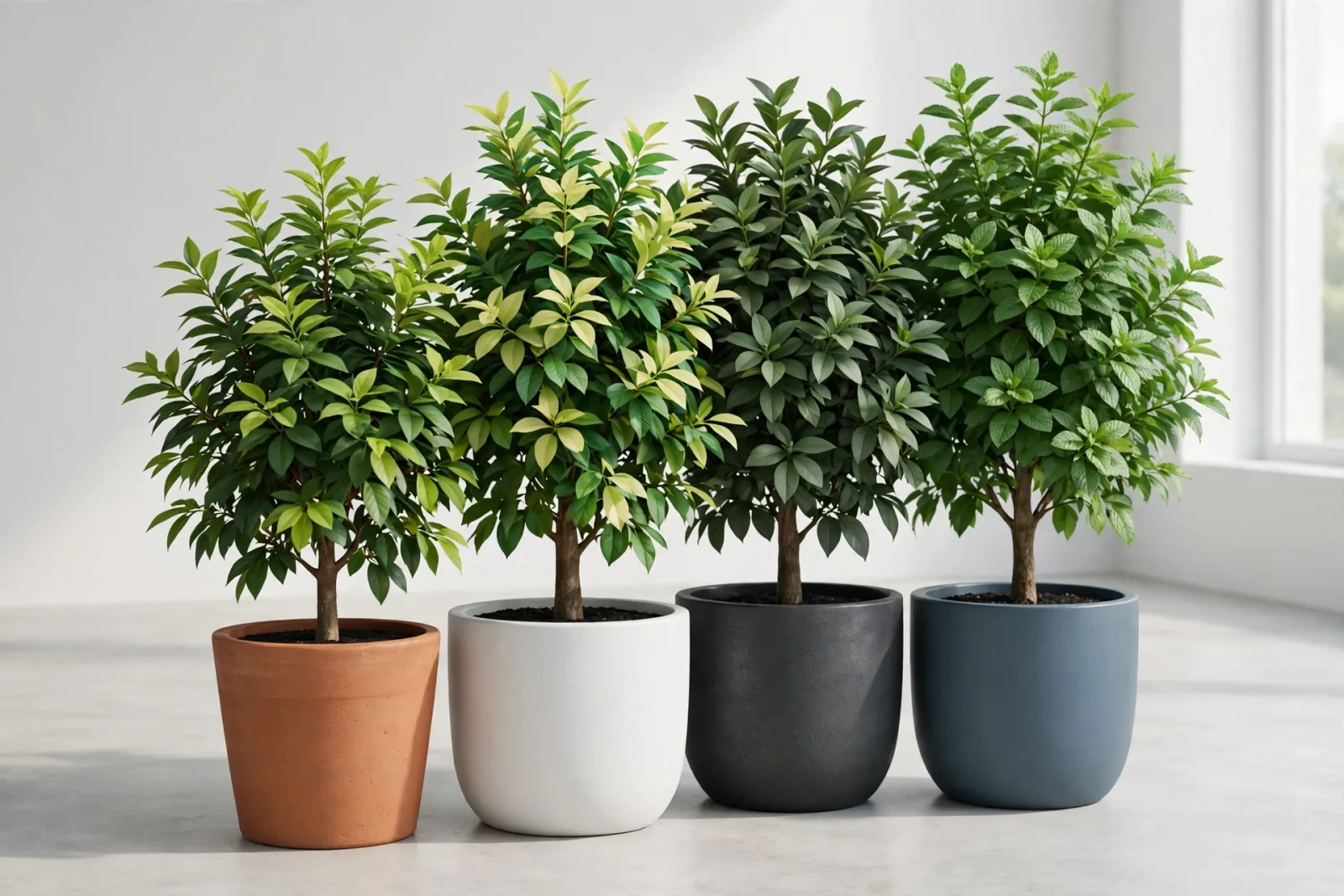
Start with pots that match the room. A set of varied pots in different heights and finishes looks far more natural than one repeated pot. The Plant Pots Set of 4 is a good example: four distinct pots that you can mix across a room, a balcony, and a hallway without obvious repetition. If you want to test a look before buying, the Free Plant Pots Set gives you the same idea at no cost, and it is a handy way to check scale in your own model before committing to a full scene.
Outdoor Trees: Placement Matters More Than Detail
Outdoor scenes tempt people into planting a forest. Resist it. A handful of well placed trees beats a dense, heavy tree line every time, both for file speed and for how the scene reads.
Use trees to frame views, not fill them. One tree at each side of a house frontage creates a natural frame for the building. A single shade tree over a patio tells the viewer where people sit. Along a boundary, space trees unevenly, just as real planting grows, rather than in a perfect row. Uneven spacing, varied heights, and a mix of two or three tree types look natural, while identical trees in a straight line look computer generated.
For patios and garden seating areas, pair planting with furniture. The Garden Table and Bench Set works well with planters around it, and the Planter Set of 3 lets you build a planted edge around a seating area without adding heavy tree geometry. Planters are also a smart substitute for shrubs: they give you green mass at eye level, where the camera sees it, without the face count of a full bush.
Five Habits That Keep Plant-Heavy Files Fast
- Use components, never groups, for repeated plants. Components share geometry, so twenty copies of one tree cost far less than twenty unique trees. If you need variety, make two or three component versions and mix them.
- Purge unused components regularly. Every plant you tested and deleted may still sit in the file. Window, Model Info, Statistics, Purge Unused removes that dead weight in seconds.
- Turn off shadows for background trees. Shadows are expensive to calculate. Keep them on for hero trees and foreground plants, and switch them off for distant planting.
- Use tags to hide planting while you work. Put all greenery on a Plants tag. Hide it while you model walls and furniture, then turn it back on for renders. Your orbit speed will thank you.
- Check face counts before you commit. Select a plant, look at Entity Info, and note the face count. If one tree has more faces than your whole house, find a lighter version before you copy it twenty times.
Plants for Renders: V-Ray, Enscape, and SketchUp Styles
How a plant looks depends heavily on your renderer. In V-Ray, leaf materials with translucency and subtle variation read beautifully, but they also increase render time, so keep heavy leaf materials on hero plants only. In Enscape, plants with good opacity maps and realistic textures shine, and Enscape handles large numbers of trees better than most renderers, but a bloated file still slows the live view.
Common Plant Mistakes in SketchUp Scenes
- Wrong scale: a tree taller than the house, or a desk plant the size of a shrub. Always check a plant against a door height (about 2.1 metres) before placing it.
- Perfect repetition: identical plants, identical rotation, identical spacing. Rotate and scale copies slightly for a natural look.
- Plants everywhere: greenery in every corner competes with the architecture. Leave some spaces empty so the eye can rest.
- Ignoring seasons and context: lush tropical leaves on a snowy scene, or desert cacti in a English cottage garden. Match planting to the climate of the project.
- Forgetting the pot: a plant floating without a pot, or a pot with no soil surface, breaks the illusion instantly. Always include a pot or planter for indoor and patio plants.
A Simple Workflow for Planting Any Scene
When you start a new scene, follow this order and you will rarely end up with a bloated file:
- Step 1: Block out the architecture and furniture first, with planting hidden or absent.
- Step 2: Add hero plants only: the two or three plants the camera will focus on.
- Step 3: Add medium planting: pots, planters, and shrubs at eye level.
- Step 4: Add background trees last, using the lightest models that still read well at that distance.
- Step 5: Purge unused components, check file size, and run one test render.
Where to Find Good SketchUp Plants and Trees Models
Free libraries are a fine place to start, but they vary wildly in quality and face count, and many models arrive unpurged, oversized, or with broken textures. Curated collections save that cleanup time, because each model has already been checked for scale, face count, and render-ready materials. Browse the Exteriors collection for garden furniture and planters that pair with outdoor planting, and start with a free model to test the quality in your own file before building a full planted scene.
FAQ
How many trees can I add before SketchUp slows down?
There is no fixed number, because it depends on each tree's face count. As a rule of thumb, twenty low-poly trees will run fine in most files, while twenty high-detail trees can make the same file painful to orbit. Check the face count of each tree, use components for copies, and purge unused models regularly.
Should I use 2D or 3D plants in SketchUp?
Use 3D plants for close and mid-distance views, where the camera can see depth and shadows. 2D face-me plants still work well for distant trees and for quick concept presentations, because they are extremely light and always face the camera. Many designers mix both: 3D plants near the camera, 2D trees in the far background.
Why do my plants look flat in renders?
Flat looking plants usually come from one of three causes: a single texture with no variation, lighting that is too even, or a plant viewed from an angle its geometry was not built for. Add varied leaf textures, place a light source to one side so leaves cast shadows on each other, and avoid viewing a flat, billboard style plant edge on. A test render from your actual camera angle will show the problem in seconds.
Written by
Admin User
Related Articles
Keep learning with these posts
SketchUp Office Models: Furnish Workspaces That Look Ready to Work In
SketchUp office models for desks, chairs, storage and meeting areas: real dimensions, a quality checklist, layout order and performance tips for workspaces.
Read article
SketchUp Kitchen Models: Cabinets, Islands and Dining Sets That Render Well
A practical guide to picking SketchUp kitchen models that behave in the viewport and in V-Ray and Enscape: cabinets, islands, sinks, seating and layout tips.
Read article
SketchUp Living Room Models: A Complete Guide to Furnishing Stylish Interiors
The best SketchUp living room models for sofas, coffee tables, TV units, rugs and lighting. What to check before you download, plus layout and file-speed tips.
Read article