SketchUp Doors and Windows: A Practical Guide to Dynamic Components
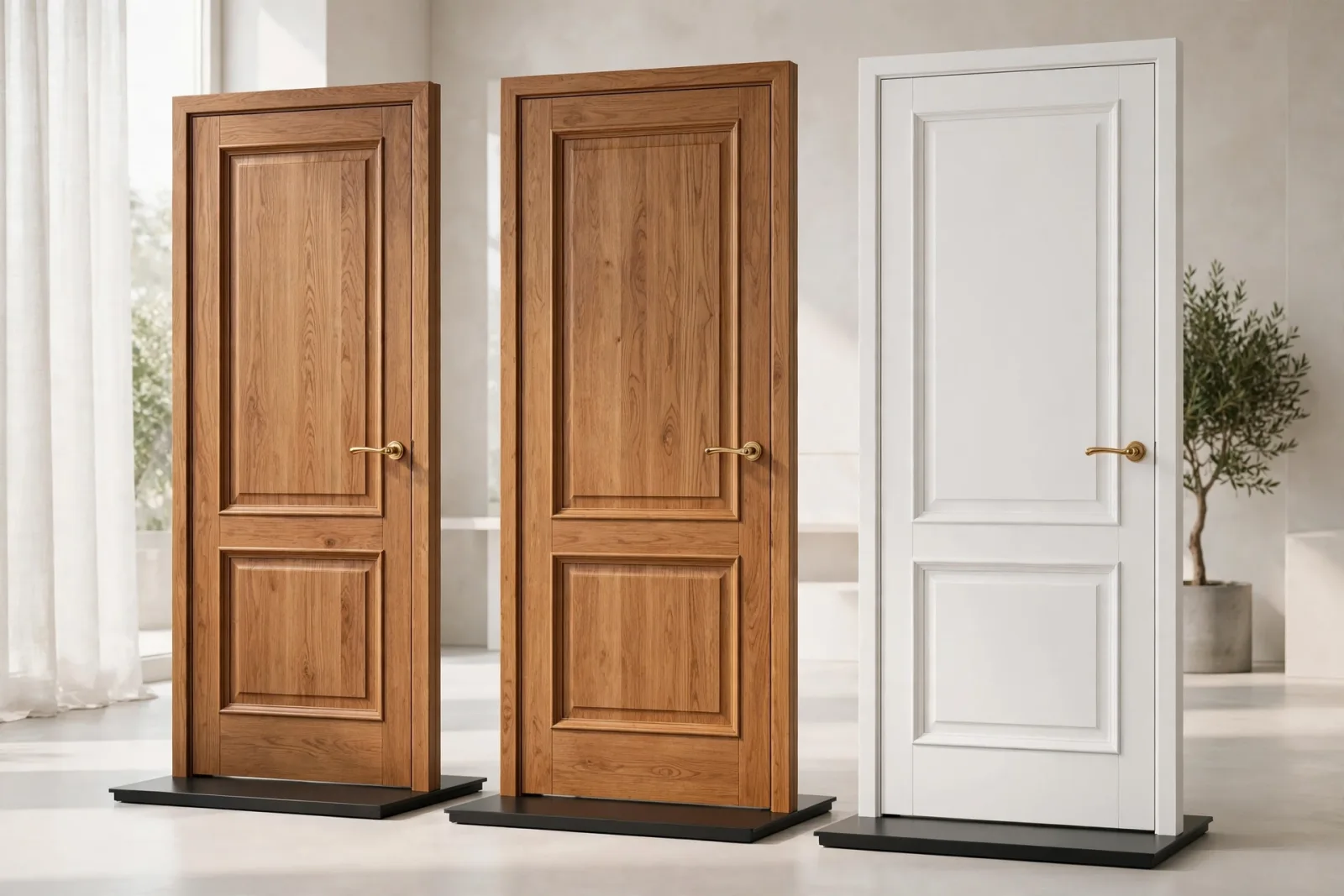
Doors and windows do more work in a SketchUp model than almost any other element. They set the scale of a room, control how light enters a render, and tell a viewer instantly whether a design is believable. A sofa can be slightly too large and nobody notices. A door at the wrong height, a window floating above a wall, or a frame that does not cut an opening will be spotted in seconds.
This guide explains how to choose, place, and control door and window components in SketchUp, with a practical focus on dynamic components: what makes a component truly dynamic, which attributes save time, how to avoid classic wall-cutting mistakes, and how to build a small library for residential projects.
Why Doors and Windows Decide Whether a Model Looks Real
A standard interior door is 80 inches high and 30 to 36 inches wide. A main entrance door is usually 36 inches wide. A typical living room window sill sits 30 to 36 inches above the floor. When your components respect those numbers, furniture, people, and ceiling heights all fall into place around them.
When they do not, problems follow. A 90-inch door in a room with an 8-foot ceiling leaves a cramped header. A window placed too high makes a room feel like a basement. A door swing that is never checked can hit a vanity or a wardrobe, turning a plan that looked fine into a layout that fails in real life.
What Is a Dynamic Component?
A normal SketchUp component is fixed geometry. Copy it, and every copy looks identical. A dynamic component adds smart behavior: select it, open Component Options, and change its width, height, material, swing direction, or frame style without redrawing anything. The geometry rebuilds itself to match your choices.
That behavior comes from attributes, named settings stored inside the component, such as DoorWidth, DoorHeight, or SwingSide. Formulas link those settings to the geometry, so changing one value moves panels or flips a swing.
For doors and windows, the three most useful features are size control, swing control, and material control. Size control lets one door serve a 30-inch closet, a 32-inch bedroom, and a 36-inch entrance. Swing control flips a door from left-hand to right-hand in seconds while you test a plan. Material control switches a frame from painted white to natural oak without repainting every face.
Anatomy of a Good Door Component
A well-built door keeps its frame, leaf, trim, and handle as separate subcomponents. That structure lets you hide trim while working on a plan, swap a handle style, or change the leaf material without touching the frame. If everything is fused into one lump, every small change becomes a cleanup job.
Check thickness too. An interior door leaf is usually 1-3/8 inches thick and an exterior leaf 1-3/4 inches, with a small clearance gap around the leaf. Those numbers make close-up renders believable and prevent clashes with adjacent trim in a tight hallway.
Finally, check cutting behavior. Many door components cut an opening in a wall automatically when placed on a face. Others do not, and you must draw the opening yourself. Neither approach is wrong, but know which one you have before placing twenty doors. Our Panel Doors Set gives you a consistent set of panel doors in one library, instead of unrelated downloads with different behaviors.
Anatomy of a Good Window Component
Windows combine glass, frame, sash, sill, and sometimes mullions or grilles. A good window keeps those parts organized and keeps glass on its own tag, so you can hide it for a clean plan or show it for a render. Glass should transmit light and show slight reflection in a render, but stay light on geometry in the working model. One flat face with a good material beats a thick glass block that adds faces for no visible benefit.
Size control is where dynamic windows earn their keep. A casement, a sliding window, and a fixed picture window need different proportions but often share the same frame profile. One dynamic window with width, height, and division settings can cover a whole house. Our Windows Set covers the common residential types in a consistent style, so a facade looks coherent rather than patched together.
Placing Doors and Windows Without Breaking Your Walls
Most placement frustration comes from wall construction, not from the components. Follow this order and most problems disappear.
- Model walls as solid, grouped geometry with consistent thickness, typically 4-1/2 inches inside and 6 inches or more outside.
- Place the component on the wall face, not floating in space, using inference locking to keep it square.
- If it is meant to cut an opening, place it on a single wall face and check both sides. If it does not cut, draw the opening with Rectangle and Push/Pull, then place the component inside it.
- Check the swing in plan view before furnishing. A door should never swing into a toilet, a wardrobe door, or a circulation path.
- Check sill and head heights in elevation. Window heads in one room should usually align, even if widths differ.
Keep doors and windows on their own tags, so a client plan can hide furniture but keep openings visible.
A Practical Workflow for a Whole House
Start with a simple schedule: each opening, its size, its type, and its swing. A small house might have only six door types and four window types, and writing them down stops you from inventing a new size for every room. Collect one component per type, test it at its smallest and largest sizes, and save the tested versions in a library folder.
Place all openings before you furnish rooms. Furniture placed around a badly positioned door will all need to move later. Place doors and windows, check swings and sill heights, then furnish. This order also helps renders, because daylight through windows is the main light source in most interiors.
Finally, dress the windows. Curtains and blinds change how a window reads in a render and hide small imperfections at the frame edge. Pair your windows with the Curtains Set for a finished look, and keep curtain geometry light so it does not slow down the model.
Common Mistakes and How to Fix Them
Doors that do not cut the wall
If no opening appears, the component is probably not set to cut, or the wall is not a single face. Draw the opening manually and place the door inside it. Do not scale the door to hide the problem, because a scaled door will report the wrong size later.
Windows floating above the floor
This usually happens when a window is copied to another wall without checking sill height. Use Move with a typed distance, or Component Options if the component supports it. Check in elevation, not just perspective, because perspective hides vertical errors.
Scaling instead of resizing
Never use Scale on a dynamic component to change its size. Scaling stretches frames, thickens glass, and breaks proportions. Use Component Options for width and height, so the frame stays the same thickness while the opening grows. If a component has no size options, it is static: accept its fixed size or replace it.
Performance: Keeping Doors and Windows Light
One door is light, but fifty detailed doors can slow a model. Use level of detail: a detailed version for close-up renders and a simplified version for the working model, and purge unused components regularly. As a guide, a door under 2,000 faces and a window under 3,000 faces are fine for most work, unless the window has complex grilles.
For a full interior, start from a coherent room set rather than assembling every piece separately. The Complete Living Room Set and the rest of the Interiors collection are built to sit together, so doors, windows, furniture, and decor share a consistent style and a sane polygon budget.
Frequently Asked Questions
What is the difference between a dynamic component and a regular component in SketchUp?
A regular component is fixed: every copy looks the same. A dynamic component has attributes and options, so you can change size, material, or swing from Component Options without redrawing it. That makes dynamic components ideal for doors and windows, where one component can cover many sizes.
Why does my SketchUp door not cut a hole in the wall?
Cutting only works if the component is built to cut and is placed on a single wall face. If the wall is grouped in a complex way, or the component is not a cutting component, no opening appears. Draw the opening manually with Rectangle and Push/Pull, place the door inside it, and check both sides of the wall.
What are standard SketchUp door and window sizes to use?
Use 80 inches high for interior doors, with widths of 30, 32, or 36 inches, and 36 inches for a main entrance. Keep living-area window sills around 30 to 36 inches high and align window heads within each room. Treat these as starting points: local practice and the design itself guide final sizes.
Build a Library You Can Reuse
The fastest SketchUp users are not the ones who model fastest. They are the ones who stop remodeling the same door for every project. Pick one panel door set, one window set, and one curtain set, test them at their extremes, fix their materials once, and save them in a folder you trust. Start with the Panel Doors Set and the Windows Set, and your next interior will look sharper, render faster, and be far easier to revise.
Written by
Admin User
Related Articles
Keep learning with these posts

SketchUp Lamps and Lighting Models: How to Choose Fixtures That Render Beautifully
SketchUp lamps and lighting models that render beautifully: choose ceiling, floor, and table fixtures, tune materials, and place lights for warm, realistic interiors.
Read article
SketchUp People Models: 2D vs 3D Figures That Make Renders Feel Real
Learn when to use 2D or 3D SketchUp people models, how to place scale figures correctly, and how to avoid the mistakes that make renders look fake.
Read article
SketchUp Car Models: How to Choose, Place, and Render Vehicles in Exterior Scenes
Choose SketchUp car models that fit your scene and render cleanly. Scale, polygon count, materials, and placement tips for realistic exterior views.
Read article