SketchUp People Models: 2D vs 3D Figures That Make Renders Feel Real
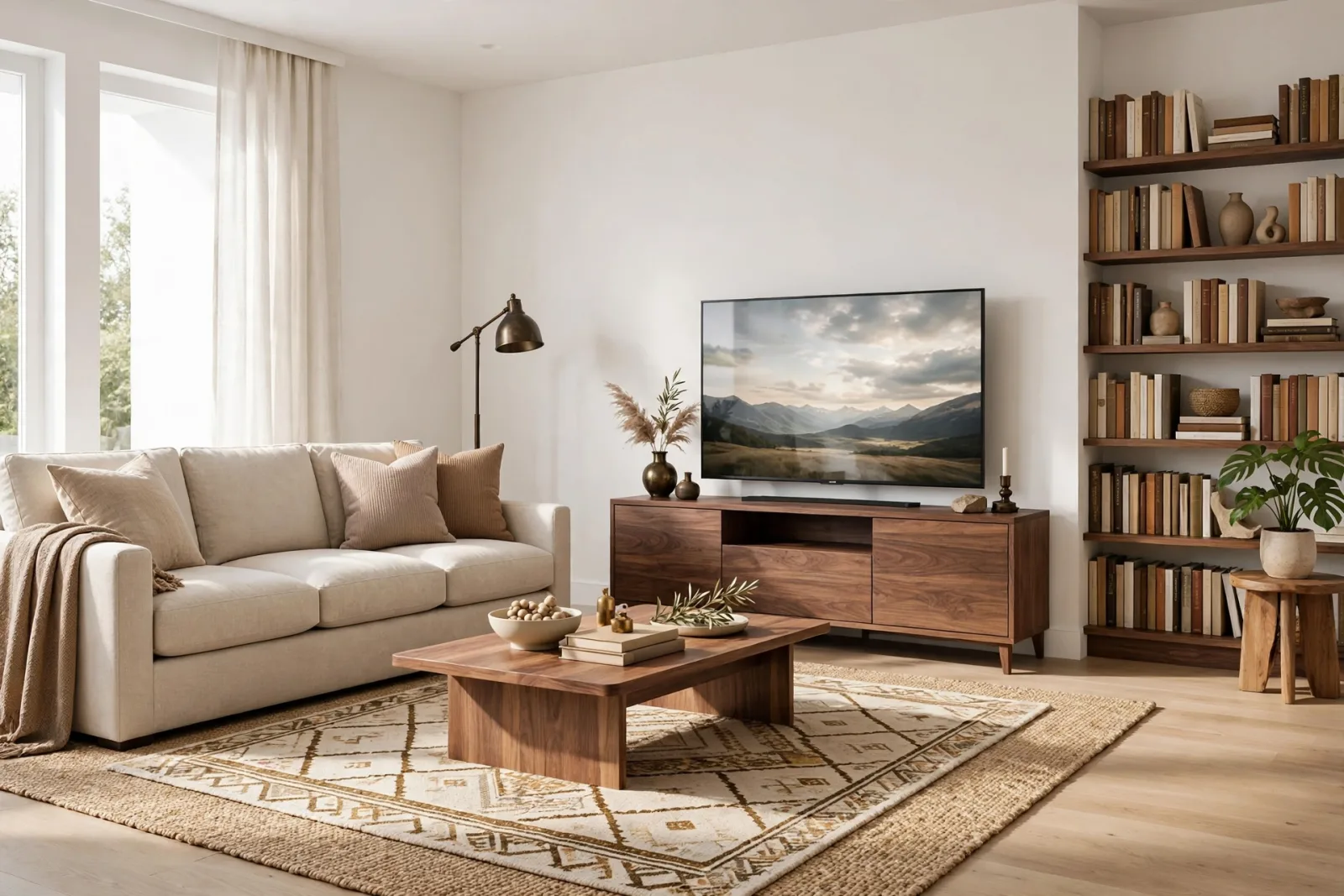
A beautiful SketchUp interior can still feel empty. The furniture is right, the light is warm, and the proportions look correct, yet something is missing. That something is usually people. A single well placed scale figure tells the viewer how big a room is, how high a counter sits, and whether a sofa is deep enough to sit on comfortably. Without people, even a good model can read like a showroom. With them, it reads like a place where someone actually lives, works, or gathers.
This guide explains how to use SketchUp people models well: the difference between 2D and 3D figures, when each one works best, how to place them so they look natural, and which mistakes make renders look fake. The store does not sell people models, and that is worth saying plainly. What follows is a practical workflow for choosing figures from your own library and pairing them with real furniture and outdoor pieces so the whole scene holds together.
Why People Models Matter More Than Most Details
Clients do not judge a render by counting polygons. They judge it by feeling. A person standing next to a kitchen island instantly answers the question every client asks in their head: is this space comfortable for me? A seated figure at a dining table shows whether six chairs really fit without elbows bumping. People also fix scale problems that are hard to spot in an empty model: a generous-looking room can feel cramped once a 1.7 metre figure stands in it. Add one figure to each key space early, then refine the furniture around the person.
2D People vs 3D People: The Honest Comparison
SketchUp people come in two broad types. Neither is better in every situation. The right choice depends on your camera angle, your renderer, and how close the viewer will get to the figure.
2D People: Light, Fast, and Best for Straight-On Views
2D people are flat cutout images, usually with a transparent background, that always face the camera. In SketchUp these are called face-me components. No matter where you orbit, the figure turns to face you, which keeps it readable from any angle. A 2D figure adds almost nothing to file size, it renders quickly, and it looks convincing in a straight-on interior view or an elevation. For early concept presentations, a set of 2D figures is often all you need to communicate scale and activity. The limits show up as soon as the camera moves: a 2D figure has no back or side profile, so from above it can look like a cardboard cutout, and in close-up the flat edges become obvious. Keep 2D figures in the background.
3D People: Realistic, But Heavier and More Demanding
3D people are full geometry models with a front, back, sides, arms, and legs. They cast believable shadows, they sit correctly in chairs, and they hold up in close-up renders. If your hero shot is a living room seen from sofa height, a 3D figure in the foreground will look far more convincing than a flat cutout. The cost is performance and realism risk. A detailed 3D person can carry tens of thousands of polygons, and a poorly modelled one, with stiff poses and plastic skin, is worse than a good 2D figure. Practical rule: 3D figures for the one or two people closest to the camera, 2D for everyone else.
Choosing the Right Figure for the Scene
Start with the story of the room, not with the figure library. Ask who uses this space, what they are doing, and where the camera will stand. A relaxed living room needs a seated or lounging figure, not someone mid-stride. An office needs people at desks and in conversation, not a crowd standing in the middle of the floor. A garden needs someone sitting on a bench or walking a path, not a figure posed in the middle of a lawn for no reason. Match the figure style to the render style: realistic figures for photorealistic renders, simple silhouettes for clean diagram-style presentations. Keep clothing colours muted and natural, so the person supports the scene instead of stealing it.
Placing People So They Look Natural
Placement is where most people models fail. A figure floating a few centimetres above the floor, sunk into a sofa cushion, or standing with its feet inside a rug edge will ruin an otherwise good render. These checks take seconds and fix most problems.
- Feet on the floor, always. Zoom in and confirm both feet touch the finished floor level, not the subfloor or the top of a thick rug. If the figure stands on a rug, raise it by the rug thickness.
- Seat figures properly. A seated figure should sit on the seat cushion, with knees at roughly a right angle and feet reaching the floor. If the chair is low or the figure is tall, adjust the chair or pick a different pose rather than leaving feet dangling.
- Give people a reason to be there. Place a figure reading near a lamp, cooking at a counter, or talking across a table. Random figures standing in empty corners look staged.
- Respect personal space. Two people in conversation stand about an arm's length apart and angle slightly toward each other. Leave realistic gaps between figures.
- Watch the eye line. A standing figure's eyes sit around 1.5 to 1.6 metres above the floor. Set the camera at a natural standing or seated eye height for the shot you want.
Getting Scale Right, Every Time
Scale is the whole point of a people model, so it must be exact. Use a consistent adult height of about 1.7 metres for a standing figure, and check it against door heights, counter heights, and ceiling heights. A standard interior door is about 2.1 metres tall, so a standing figure should reach roughly four fifths of the door height. If your figure towers over a door, the figure is wrong or the door is wrong, and the client will feel it even if they cannot explain why. Be careful with imported figures: some arrive at the wrong scale, some in feet when your model is in metres. Measure every figure with the Tape Measure tool, correct the height, and only then copy it around the scene. Children and wheelchair users need the same care, and a wheelchair figure also gives you a useful accessibility check at doors and tables.
Pairing People With Furniture That Sells the Scene
People look most convincing when the furniture around them is complete and correctly scaled. A seated figure needs a real chair, a real table height, and something to do. That is where a curated furniture set helps: every piece is already proportioned to work together, so your figures sit naturally instead of fighting mismatched pieces. For a living room hero shot, start with a Complete Living Room Set and place one seated figure on the sofa and one standing figure near the window. For a dining scene, a Complete Dining Set for 6 gives you six believable seats. For an office presentation, a Complete Home Office Set pairs a desk, chair, and storage at working heights. Outdoors, a Garden Bench with one seated figure tells the viewer the garden is for resting, and the full Exteriors collection finishes the scene.
Common Mistakes That Make People Look Fake
- Too many people. A home interior with twelve figures looks like an open house, not a home. Two to four figures are enough for most rooms.
- Identical clones. Repeating the same figure, same pose, same shirt, three times in one view is immediately obvious. Vary pose, clothing colour, and height.
- Figures facing the wall. A 3D figure turned the wrong way, staring at a blank wall, looks like a mistake. Always check orientation from the render camera.
- Perfect symmetry. Real people do not stand in perfect rows. Offset figures slightly, vary their spacing, and let one figure sit while another stands.
- Ignoring shadows. A figure with no contact shadow floats. Make sure figures cast shadows and receive them, and check that the shadow direction matches the rest of the scene.
Keeping File Size and Render Time Under Control
People models are one of the fastest ways to bloat a SketchUp file, so manage them deliberately. Keep your master people library outside the working model and import only the figures each scene needs. Use low-poly versions for background figures and reserve high-detail figures for the foreground. Purge unused components regularly, because every figure you tested and deleted may still sit in the file unless you purge. If your renderer supports proxies, use them: a lightweight placeholder in SketchUp, full geometry only at render time. Save a separate render copy of the file too, so the working file stays lean.
FAQ
Should I use 2D or 3D people models in SketchUp?
Use 2D face-me figures for background people, distant views, and fast concept presentations, because they are light and always face the camera. Use 3D figures for the one or two people closest to the camera, for close-up renders, and for seated figures, because they cast real shadows and hold up from every angle. Most strong renders mix both.
How tall should a SketchUp scale figure be?
A standing adult figure should be about 1.7 metres tall in a metric model. Always measure an imported figure with the Tape Measure tool before copying it, because libraries vary and some figures arrive at the wrong scale. Check the figure against a 2.1 metre door: the figure should reach roughly four fifths of the door height.
Why do my people models look fake in renders?
The usual causes are floating feet, wrong scale, identical repeated figures, unnatural poses, and missing shadows. Fix placement first, vary pose and clothing, limit the number of figures to two to four per room, and confirm shadows match the rest of the scene. A few careful figures always look better than a crowded, careless scene.
People are the smallest detail in a SketchUp model and the largest clue about scale, comfort, and life in a space. Choose figures that fit the story of the room, place them with care, keep the foreground realistic and the background light, and pair them with furniture that is already proportioned to work together. Do that, and your renders will stop looking like empty showrooms and start looking like places people want to be.
Written by
Admin User
Related Articles
Keep learning with these posts
SketchUp Car Models: How to Choose, Place, and Render Vehicles in Exterior Scenes
Choose SketchUp car models that fit your scene and render cleanly. Scale, polygon count, materials, and placement tips for realistic exterior views.
Read article
SketchUp Plants and Trees Models: Greenery That Does Not Slow Your Model
Learn how to choose SketchUp plants and trees models that look great in renders without slowing your file down, from low-poly trees to smart placement tricks.
Read article
SketchUp Office Models: Furnish Workspaces That Look Ready to Work In
SketchUp office models for desks, chairs, storage and meeting areas: real dimensions, a quality checklist, layout order and performance tips for workspaces.
Read article